Auto Layout is a powerful feature. It manages the position and size of the views. Basically, we create constraints, Auto Layout will automatically adjust the views to satisfy all constraints.
Animation
Auto Layout animation can be achieved by changing constraint property, and then tell Auto Layout that constraint property is updated, please adjust the views to satisfy new constraint property
The code will look like this.
constraint.constant = someValue //change constraint's property
UIView.animateWithDuration(0.3){
     self.view.layoutIfNeeded() //tell the view to layout again
}
For example, I create a width constraint to the view. When I press the button, the view will expand and shrink back and forth.
@IBOutlet weak var widthConstraint: NSLayoutConstraint!
var selected = false
@IBAction func switchButtonPressed() {
    selected = !selected
    widthConstraint.constant = selected ? 100 : 200
    UIView.animateWithDuration(0.3){
        self.view.layoutIfNeeded()
    }
}

In the code, we saw widthConstraint is an @IBOutlet. That means we can setup the constraint in Interface Builder, and then connect it into code.
Real App Animation
Easy right ? Now, let’s make an animation, which we would make it into the real app. Like this:
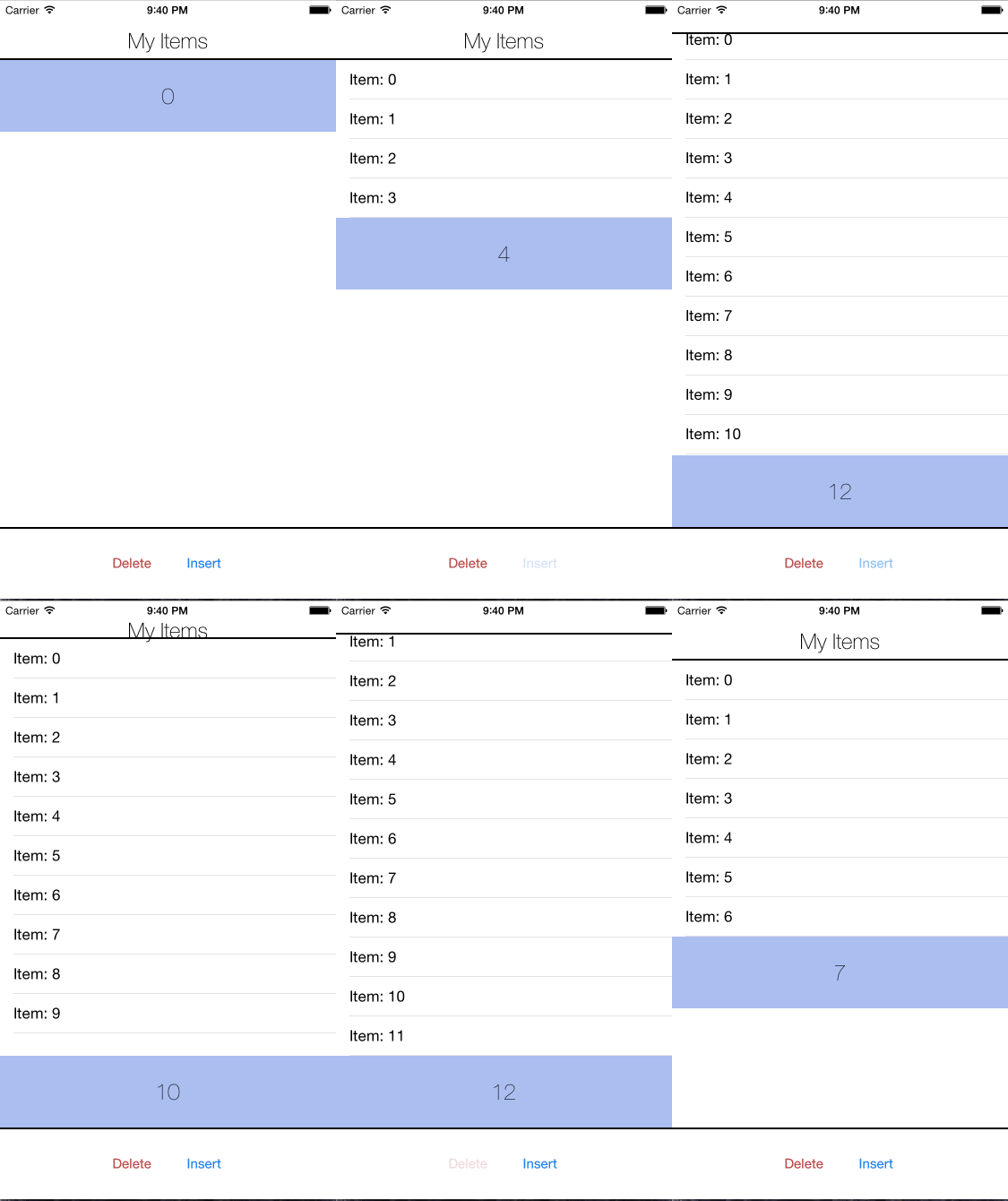
How to achieve this ? Without Auto Layout, you might calculate tableView frame and check the boundary, I’m sure that it will take more than 10 lines of codes to maintain the positions and sizes.
With Auto Layout. we can achieve this with just these lines of codes. ( see completed project on Github )
tableViewHeightConstraint.constant = tableView.contentSize.height
UIView.animateWithDuration(0.3){
    self.view.layoutIfNeeded()
}
Why so short? because, we’ve left other works to Auto Layout in Interface Builder by making these vertical constraints:
//Vertical Constraints
1. middleView height = 80
2. middleView top space to tableView = 0
3. middleView bottom space to bottomView >= 0
4. bottomView height = 80
5. bottomView bottom space to bottom layout guide = 0
6. tableView height = 100, priority = 999
7. tableView top space to top layout guide = 0
Basically, whenever tableViewHeightConstraint is updated, Auto Layout will also adjust the position of middleView.
Someone might ask. Will it break? If I set the tableView height to 99999, so Auto Layout will not be able to satisfy the constraints. The answer is no. Although, you can set whatever you like, Auto Layout will ignore this constraint.
Ignore? yes, because IB set constraint’s priority to 1000 by default. 1000 means the constraint must be satisfied. Whatever below 1000 means if the constraint can’t be satisfied, then just ignore it.
So, we set tableViewHeightConstraint’s priority to be less than 1000. This causes Auto Layout to adjust views’ position before tableView’s height, and when tableView’s height exceeds the boundary, the constraint will be ignored.
Another Example
In this case, I have three views. Left, middle and right. I want the behaviour that right view will move closer to left view when middle view is hidden.

if selected{
    greenViewWidthConstraint.constant = 0
    greenGreyHorizontalSpaceConstraint.active = false
}else{
    greenViewWidthConstraint.constant = 75
    greenGreyHorizontalSpaceConstraint.active = true
}
UIView.animateWithDuration(0.3){
    self.view.layoutIfNeeded()
}
In the code, I use another constraint’s property to animate Auto Layout. .active tell Auto Layout whether the constraint will be calculated or not.
These are constraints that I setup in IB.
//Horizontal Constraint
1. redButton width = 75
2. redButton leading space to superView = 15
3. redButton trailing space to greenView = 15
4. greenView width = 75
5. greenView leading space to redButton = 15
6. greenView trailing space to greyView = 15
7. greyView leading space to greenView = 15
8. greyView trailing space to superView = 15
9. redButton trailing space to greyView = 15, priority = 999
Summary
We can make animation with Auto Layout by changing constraint property. Auto Layout preserves constraints, even when screen size is changed, or rotated. This ensures that you will get consistent layouts in all screen. So, let Auto Layout do its works, and cheers !!
See completed project on Github